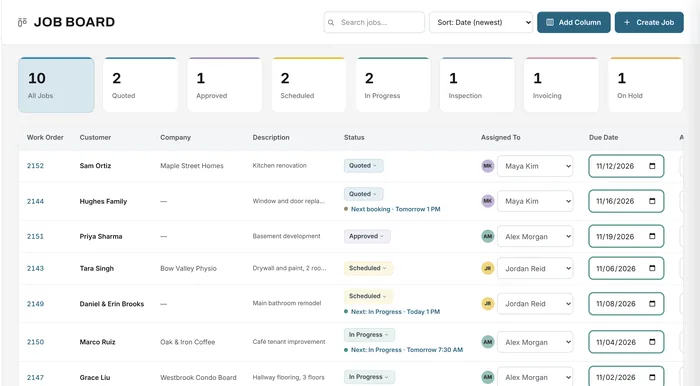
Job board
Statuses, owners and dates for every open job
Learn moreScheduling & planner
Book jobs on a day, week or month planner, choose who is going, and give each booking a task. When the booking starts, the job moves to that status on the job board.
Free forever plan · No credit card required
The problem
When the schedule is a whiteboard or a group text, crews show up at the wrong place, jobs overlap, and the office can't see what's coming.
Two jobs, one crew, and nobody noticed until the morning.
The job started yesterday but the board still says Scheduled.
Nobody can see the whole week's work in one place.
How it works
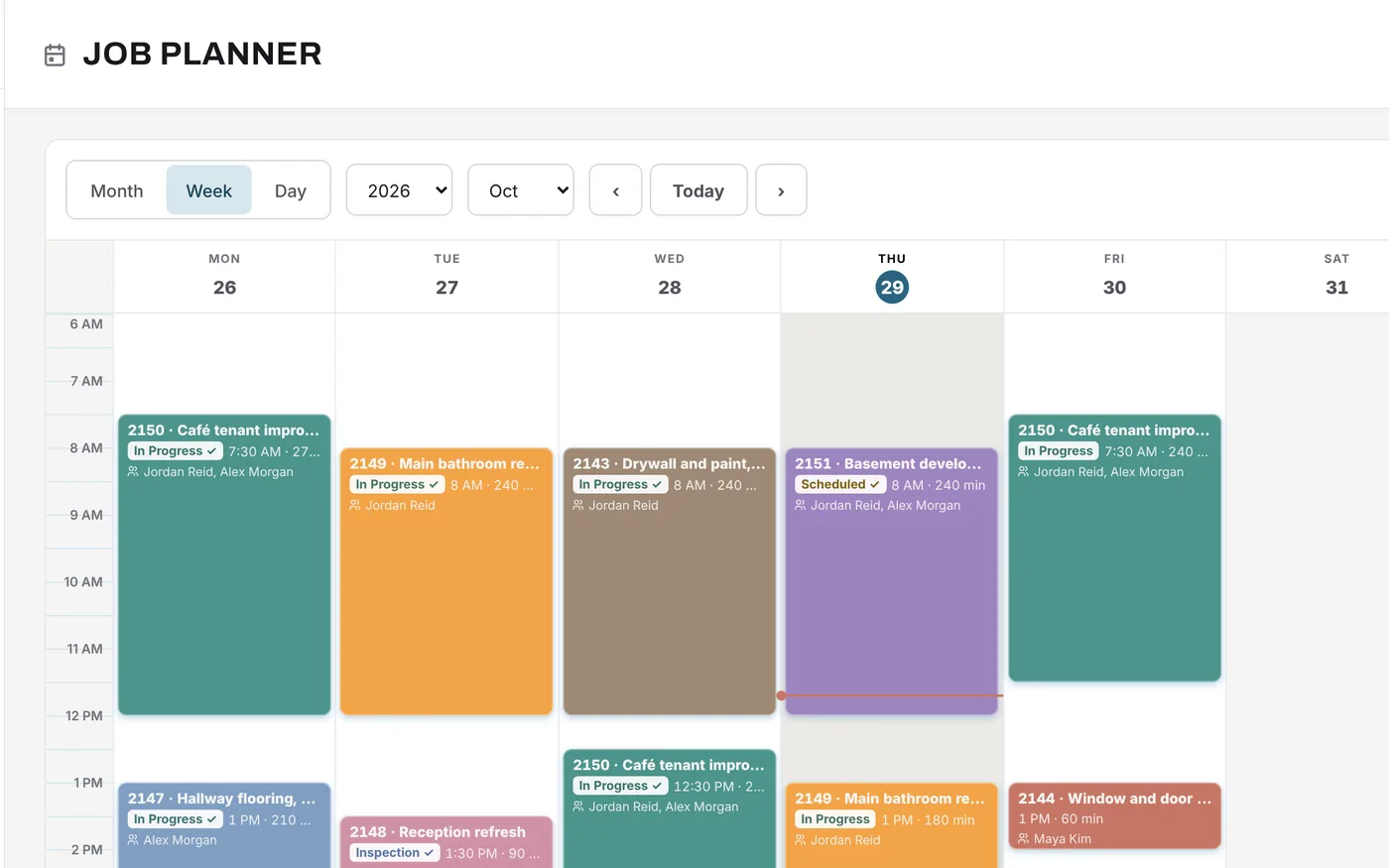
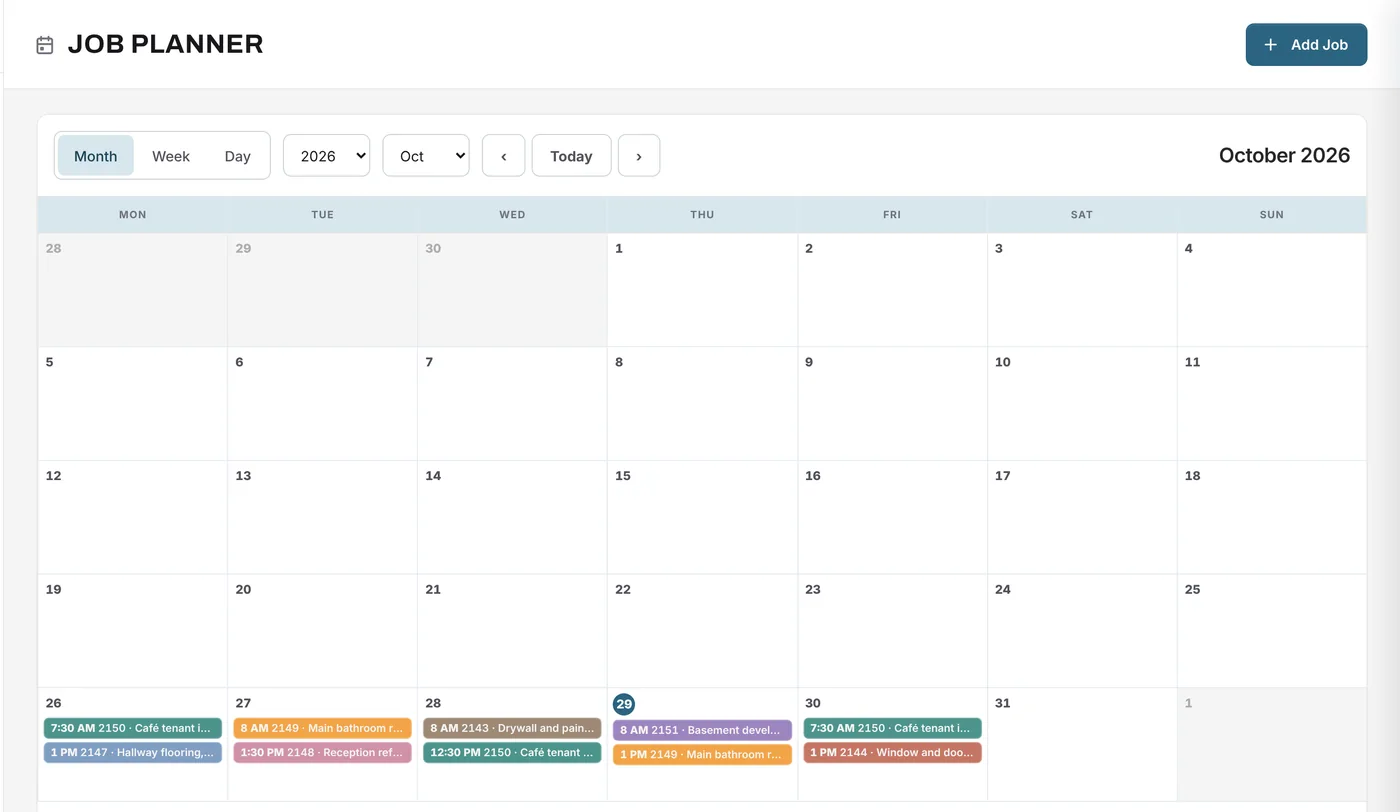
See the week at a glance with each booking showing the job, its task, the time and who's on it. Switch to day view for detail or month view to plan ahead. Each job keeps its own colour, so a long job is easy to follow across the week.
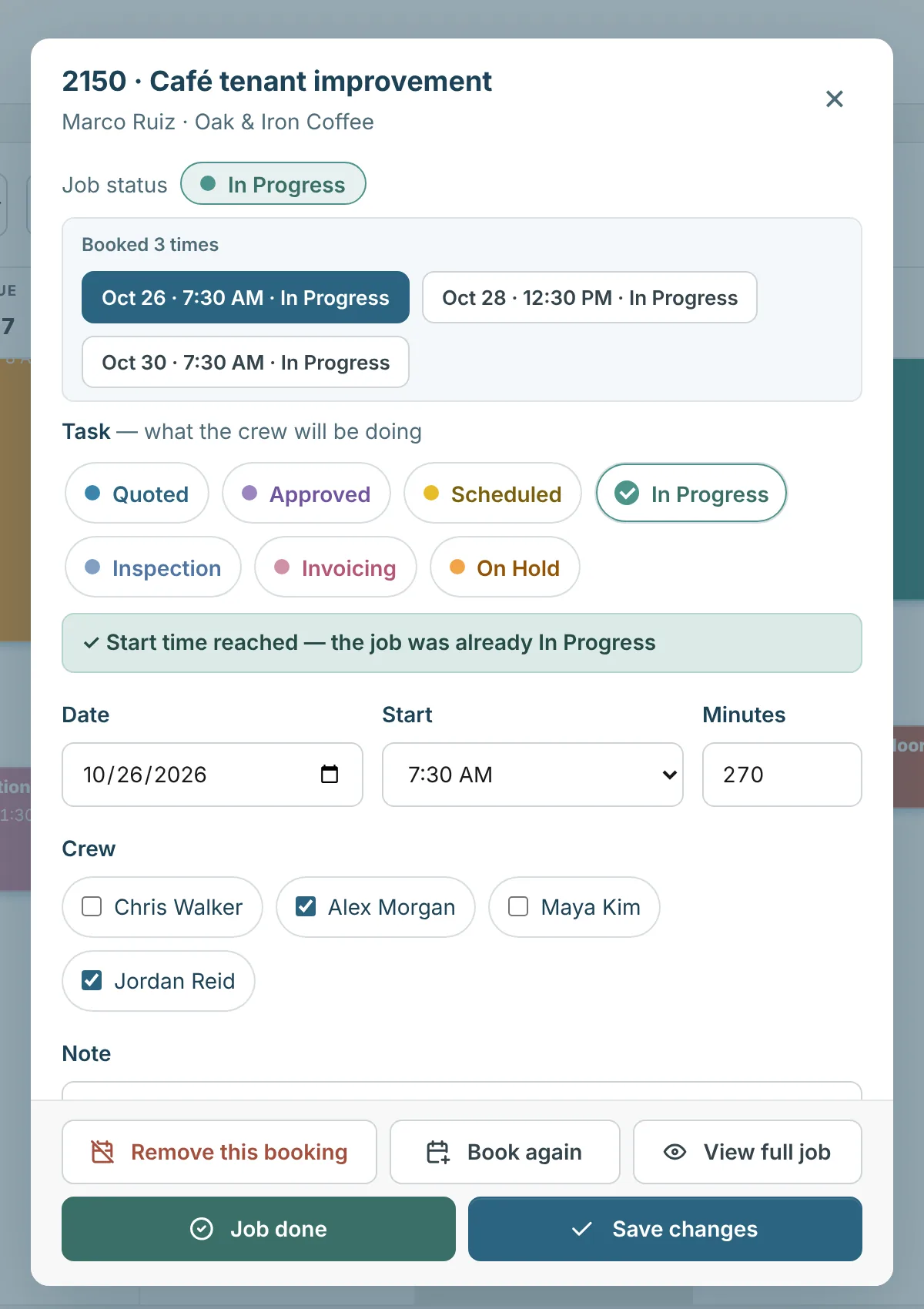
Each booking has a date, a start time, a length, the crew and a note. Give it a task, such as In Progress or Inspection, and when the booking starts, the job moves to that status on the board. If the job is already there, nothing changes.
What changes
Every crew and every job across the week on one screen.
Bookings move the job's status at their start time, so the board stays current.
Each booking says what the crew will be doing, when and with whom.
Book the same job across several days and see each day's work.
A permission decides who can change the planner.
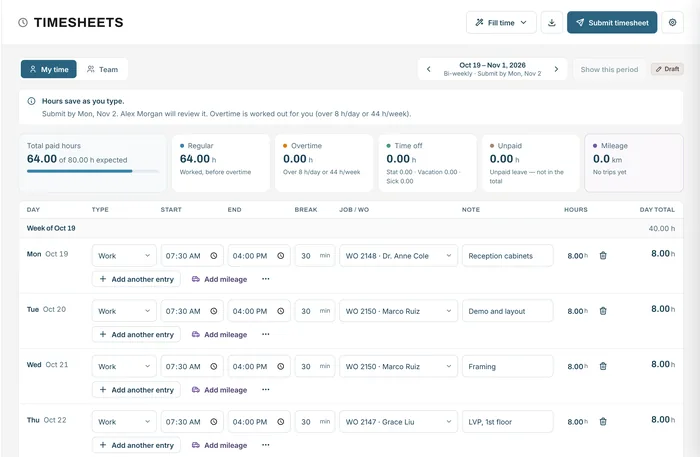
Crews log their hours by job in timesheets, so the schedule and the hours match.
Example
A renovation crew has a bathroom remodel and a drywall job in the same week.
FAQ
Can’t find your answer? Send us a message and we’ll get back to you.
Yes. A job can have as many bookings as it needs, each with its own date, time, crew and task.
The status the job should move to when the booking starts, such as In Progress or Inspection. At the start time, the job moves to that status on the job board.
Yes. The planner has day, week and month views.
Anyone with the Edit Job Planner permission. Others can see the planner without changing it.
Yes, the planner is on every plan.
Your next job starts here
Start free and put your next week's work on the planner.
Free forever plan · No credit card required